Your root domain cannot be on both Cloudflare and Playit. Because your domain is setup with cloudflare, we will add a subdomain to your Playit account. In our example our domain is playit-example.com and the subdomain is minecraft so we’ll be adding minecraft.playit-example.com. For you this will likely be different.
Requirements
- playit premium
- your external domain setup Cloudflare DNS
For other Domain Registrars visit Add an external domain to playit.gg .
1. Add your domain to playit
Visit your account settings and add your domain.
Click on Domains, and then go to Add External Domain. Fill out your domain’s information.
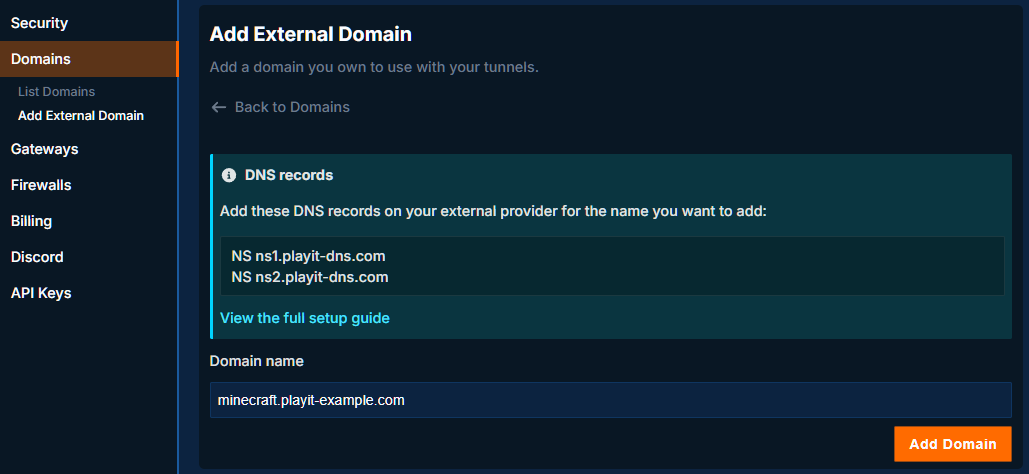
Once you’ve done that, confirm your settings by clicking Add Domain.
2. Visit your domain’s management page
Log in to the Cloudflare Dashboard, select your domain, and open the DNS → Records page.
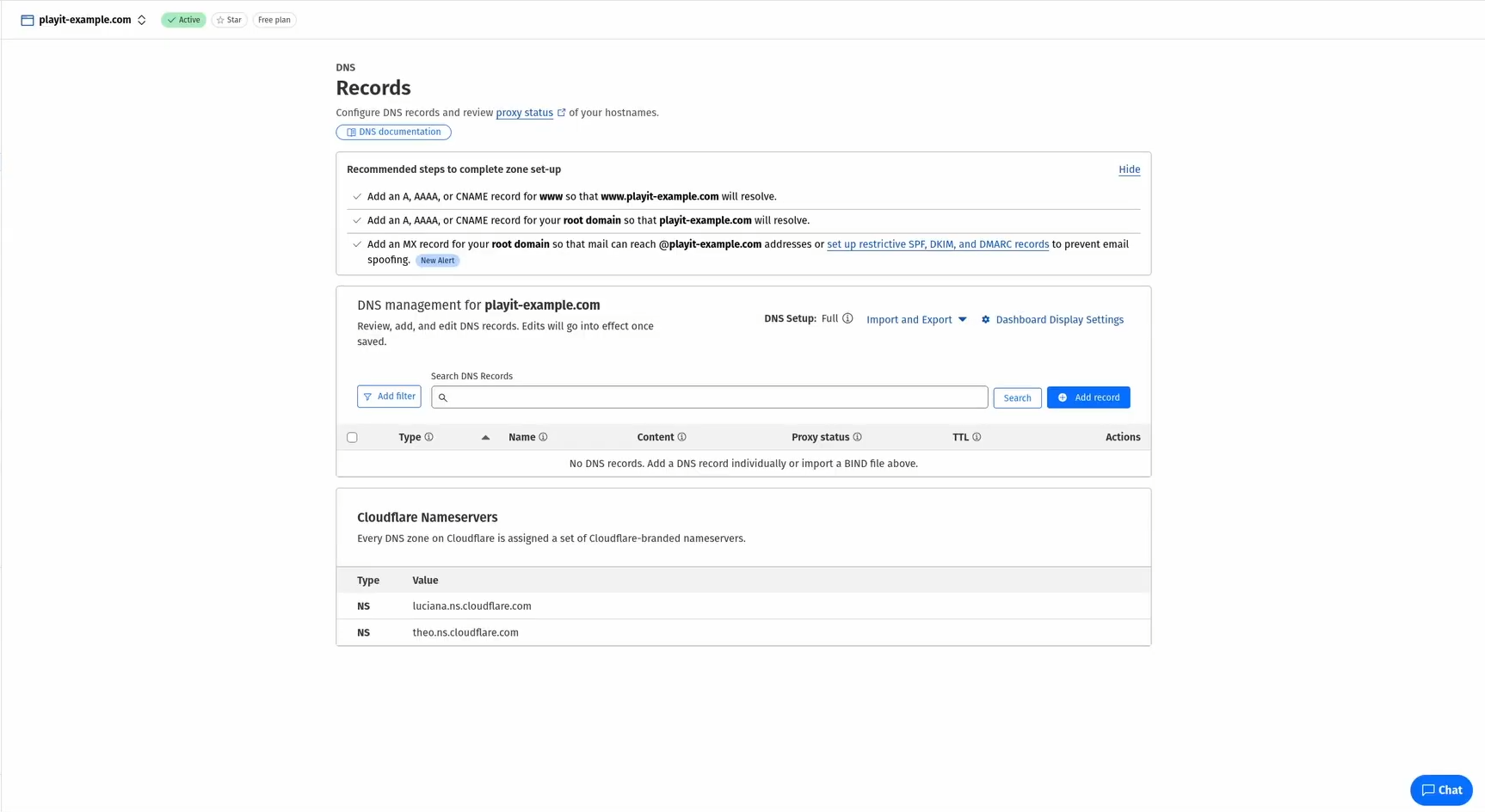
3. Add NS records for the sub domain
We will delegate the sub domain to playit.gg using NS records.
Create one NS record:
NS Record
- Type:
NS - Name:
minecraft(might be different for you) - Target:
ns1.playit-dns.com - TTL: Auto
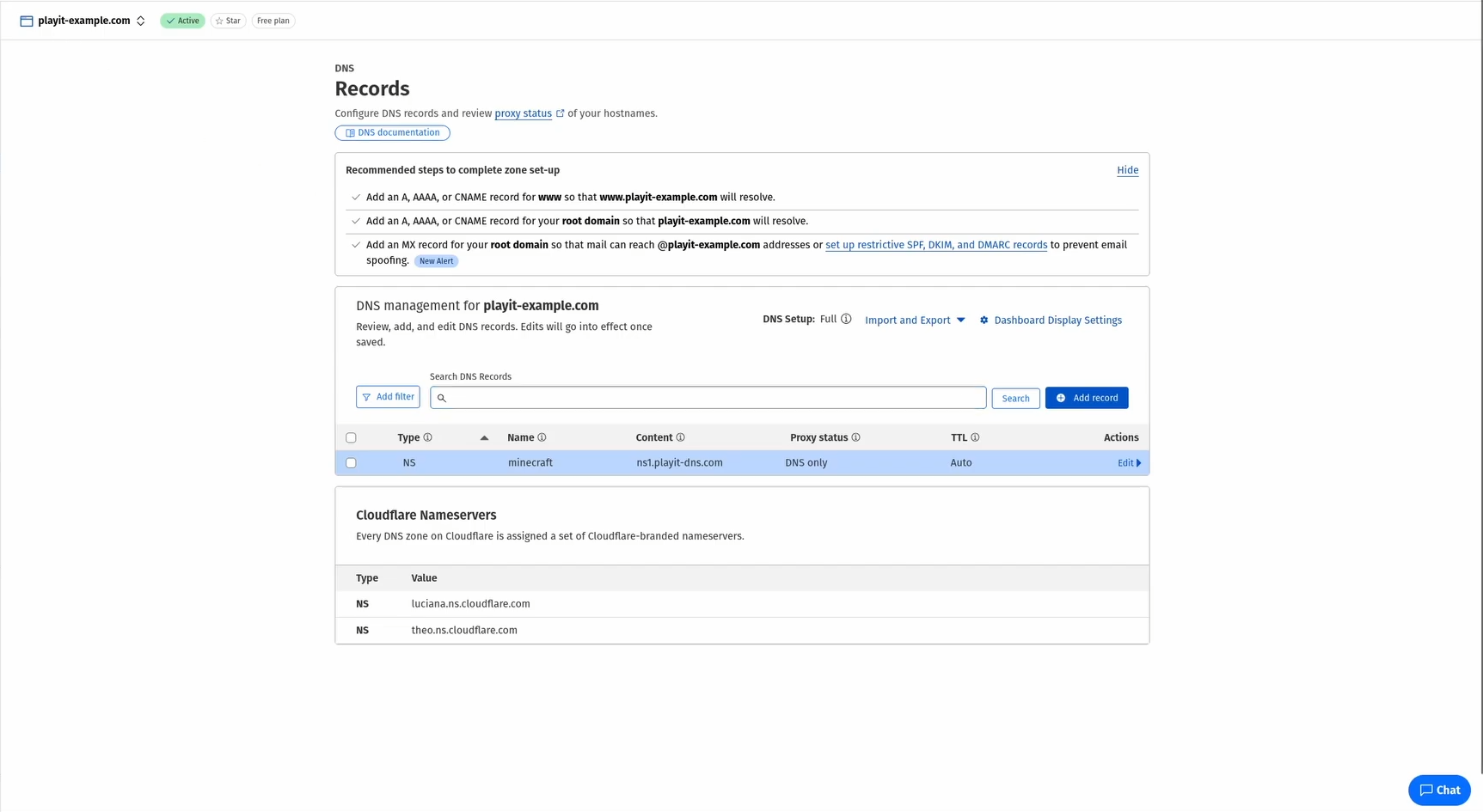
4. Assign your domain to a tunnel
Edit or create a new tunnel, and look at the top of the page. You should see an automatically assigned domain. Click on Change domain, and choose a domain from Select a domain from your account.
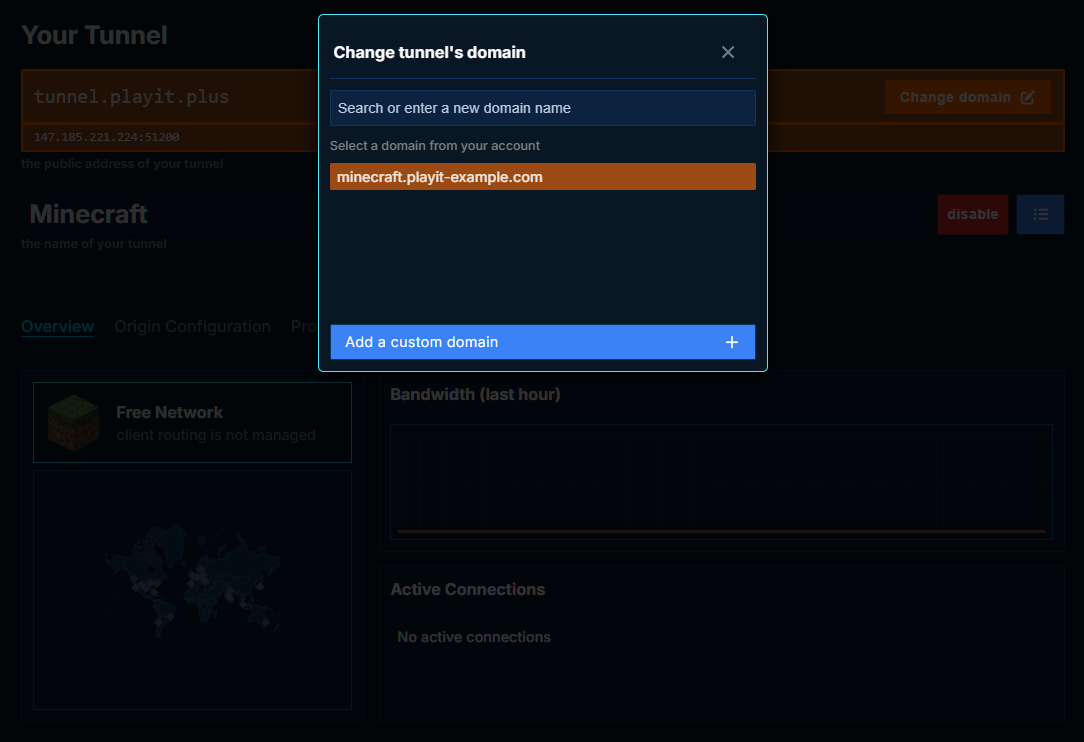
Once you’ve selected your domain, click on use yourdomain.tld. Again, your domain will be different.
5. Check if the new domain is properly set up
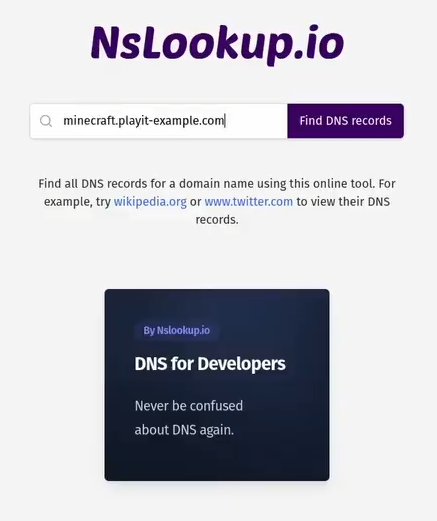
To do this, we can use something like nslookup.io Enter your domain, and then click Find DNS records
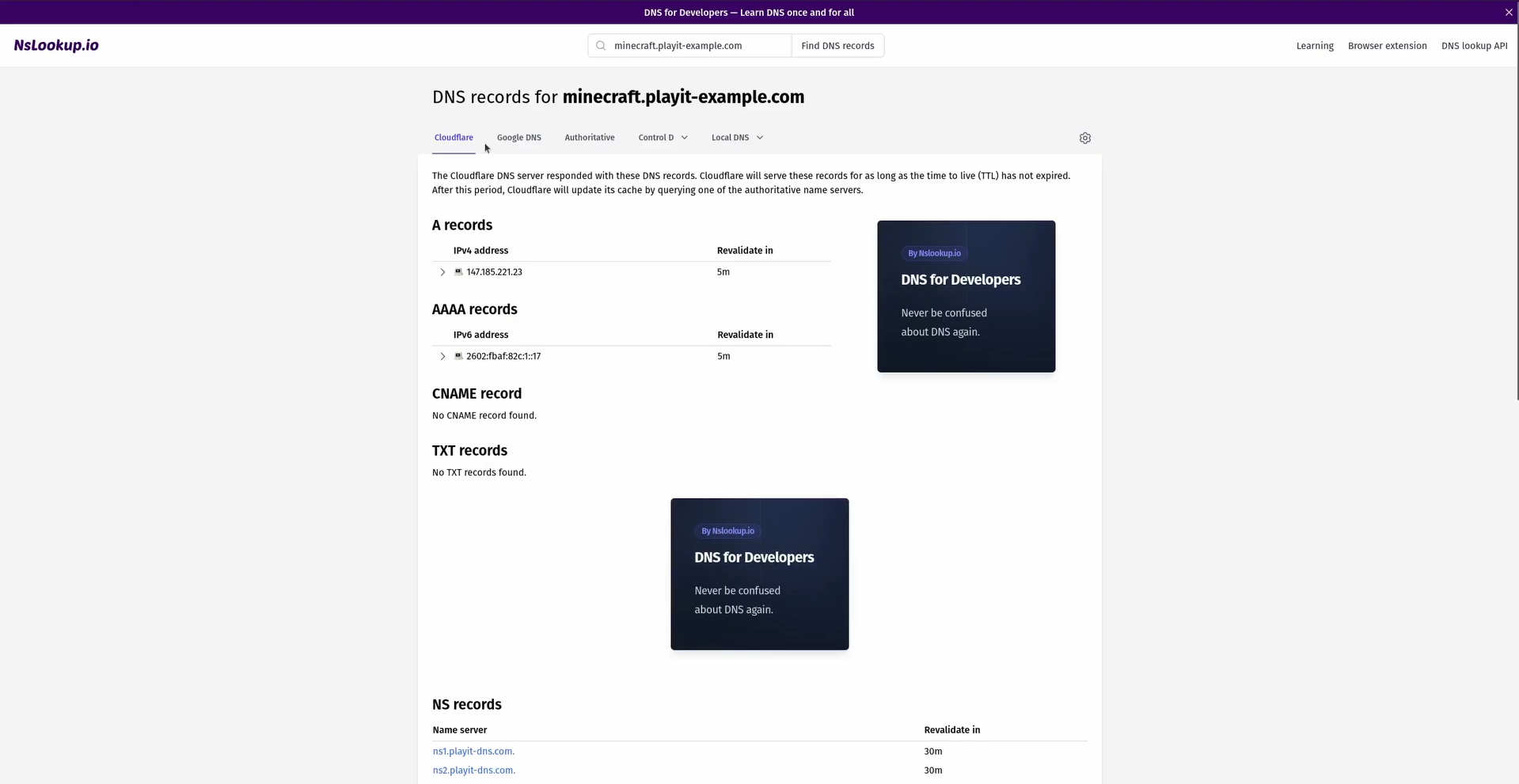
After adding your sub domain, it can take up to 1 hour before the update is seen globally. Usually it’s much quicker.